Apps · November 8, 2026 · 5 min read
The Best Habit Tracker Widgets for iPhone (and How to Set Them Up)
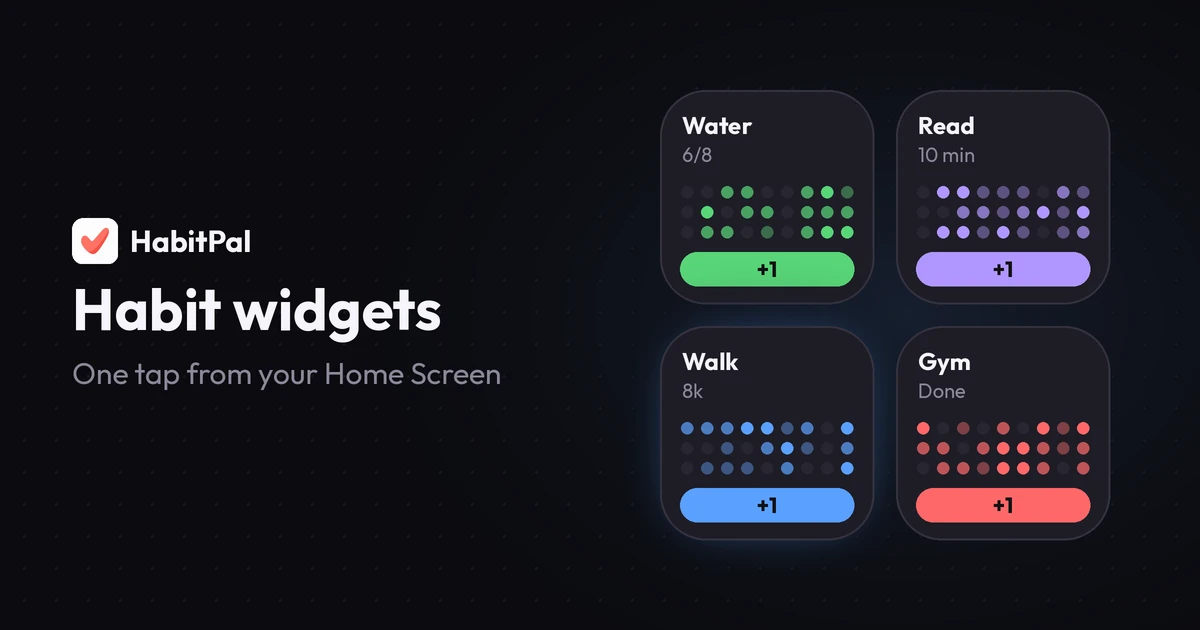
The biggest reason people stop tracking habits is friction. Unlock the phone, find the app, wait for it to load, find the habit, tap. Do that five times a day and it starts to feel like a chore. A good Home Screen widget removes almost all of it: you see your habits every time you unlock your phone, and you check them off with one tap.
What to look for in a habit tracker widget
- Interactive: you can complete a habit right from the widget (iOS 17 and later).
- Progress at a glance: a heatmap or streak, not just a checkbox.
- Counts and timers: "+1 glass" or "+1 minute" for habits that aren't yes/no.
- Several sizes: small for one habit, larger for your whole routine.
Why widgets help habits stick
Habits need a cue. A widget turns your Home Screen into one: every unlock is a small reminder of what you said you would do today. Seeing a streak or a heatmap that is almost full also adds a gentle pull to not break it. And because logging takes one tap, you actually keep your record honest, which is what makes tracking useful.
HabitPal widgets
HabitPal widgets show each habit as a colorful heatmap of your recent days, with your streak and today's progress on top. The button at the bottom completes the habit, or adds one step for counted habits like "8 glasses of water" or "10 minutes of reading". You can place a different habit in each widget and build a whole Home Screen around your routine.
- One-tap check-ins and +1 buttons, without opening the app.
- Heatmap, streak and progress in every widget.
- Matches each habit's color, in light and dark mode.
- Also on Apple Watch, with complications for your watch face.
Other habit trackers with good widgets
Habitify and TickTick also offer Home Screen widgets. If you want to compare more apps, see our honest comparison of the best habit tracker apps.
How to add a habit widget on iPhone
- Touch and hold an empty area of your Home Screen until the apps jiggle.
- Tap Edit (or the + button) in the top corner, then Add Widget.
- Search for your habit app, pick a size and tap Add Widget.
- Touch and hold the widget, choose Edit Widget and select which habit it shows.
Three Home Screen setups that work
The morning page
Put your morning habits (water, stretch, journal) on the first page, so they are the first thing you see.
One habit, front and center
Working on one hard habit? Give it a single large widget and nothing else. Focus beats variety.
The full routine
Six small widgets, one per habit, grouped by time of day. Great once your habits are already running.
Try HabitPal free
Beautiful heatmap widgets with one-tap check-ins, on iPhone, iPad, Mac and Apple Watch.

